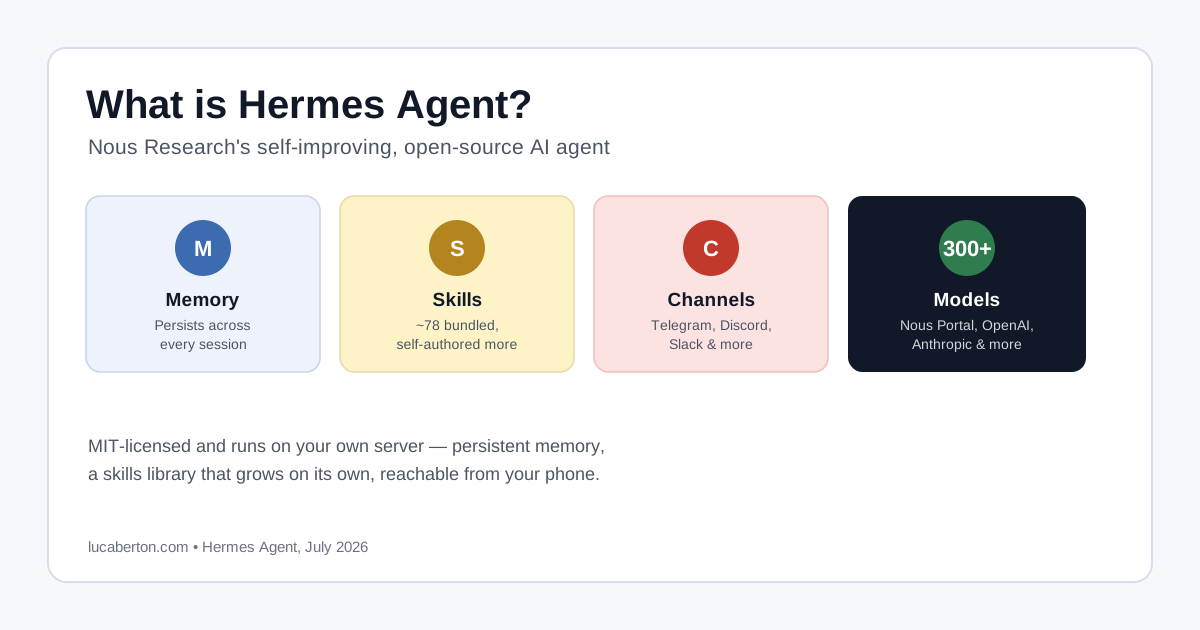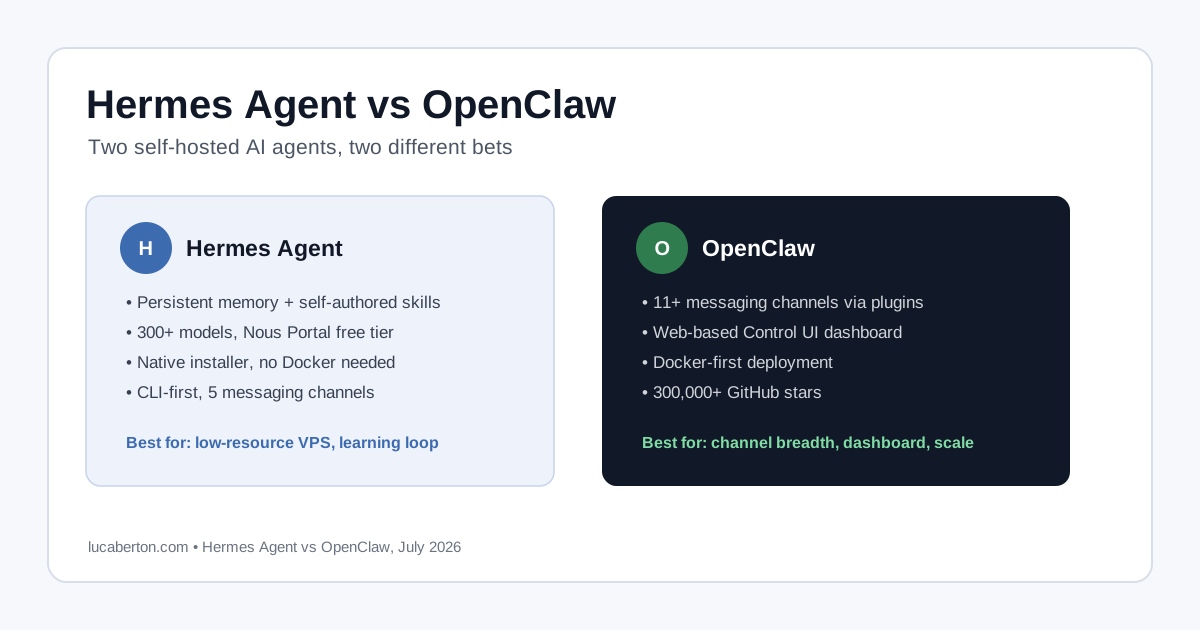
Hermes Agent is Nous Research’s open-source take on a personal AI agent that doesn’t live on your laptop. It runs on a server, keeps a persistent memory across sessions, builds its own reusable skills as it solves problems, and stays reachable from Telegram, Discord, Slack, WhatsApp, Signal, or a plain CLI. Oracle Cloud’s Always Free tier — either 4 Arm Ampere A1 OCPUs with 24 GB of RAM, or a smaller 1 OCPU / 1 GB x86 Micro instance, for $0/month, forever — costs nothing to run it on, though the smaller shape needs one extra step (a swap file) covered below.
This walks through the whole path: creating the instance, connecting over SSH, patching and hardening a fresh Ubuntu 24.04 box, installing Hermes, and keeping it running after you disconnect.
Step 1: Provision an Oracle Cloud Free Tier Instance
From the OCI Console, create a Compute instance with one of the two Always Free shapes:
Option A - Ampere Arm (more headroom):
Shape:   VM.Standard.A1.Flex
OCPUs:   1-4 (free tier allows up to 4 total across instances)
Memory:  6-24 GB

Option B - x86 Micro (smaller, still $0/month):
Shape:   VM.Standard.E2.1.Micro
OCPUs:   1
Memory:  1 GB

Image:   Canonical Ubuntu 24.04 (either shape)
Storage: boot volume, up to 200 GB total free tier allowance
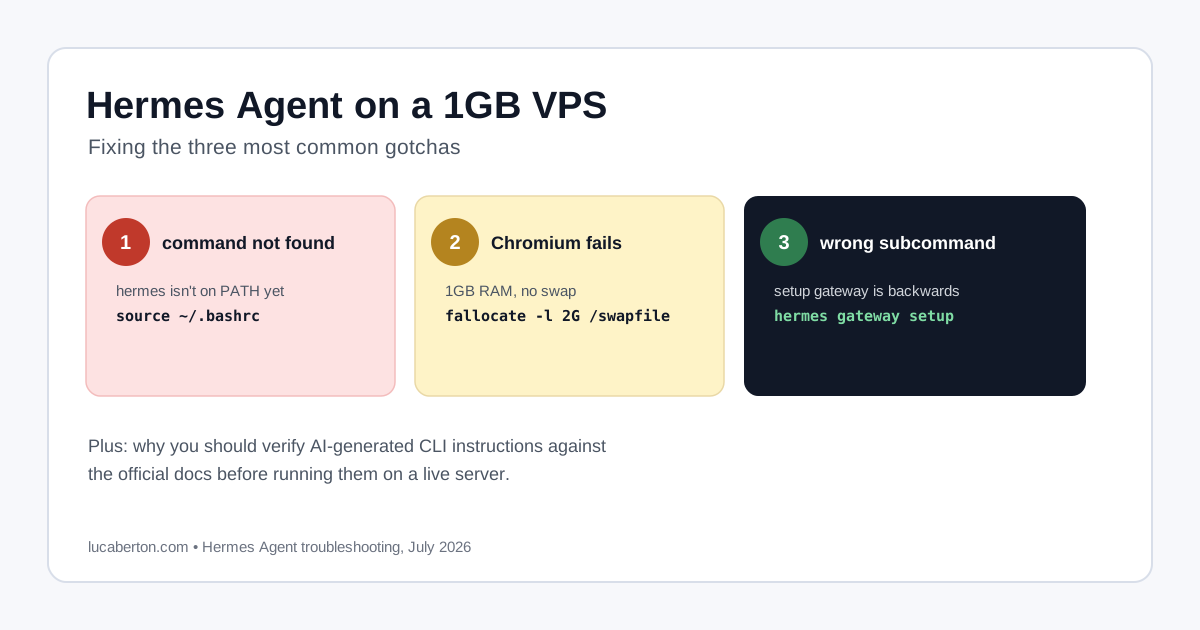
The Micro shape’s 1 GB of RAM is enough for Hermes itself, but tight for optional add-ons like Playwright’s Chromium — see the swap-file fix in Step 6 if you go this route.
Oracle Cloud generates (or lets you upload) an SSH key pair when you create the instance. Download the private key and lock down its permissions before using it — SSH refuses to use a key that’s readable by anyone else:
chmod 0600 oracle-cloud.keyStep 2: Connect Over SSH
ssh -i oracle-cloud.key ubuntu@203.0.113.10On the first connection you’ll be asked to confirm the host’s fingerprint — accept it (yes) and it’s saved to known_hosts for future logins:
The authenticity of host '203.0.113.10 (203.0.113.10)' can't be established.
ED25519 key fingerprint is: SHA256:AbCdEfGhIjKlMnOpQrStUvWxYz0123456789ABCDEFG
Are you sure you want to continue connecting (yes/no/[fingerprint])? yes
You land on Ubuntu 24.04 LTS running Oracle’s own kernel build (6.17.0-1018-oracle).
Step 3: Update and Patch the Instance
Fresh cloud images are rarely fully patched. Update the package index and apply upgrades before installing anything else:
sudo apt update
sudo apt upgrade -y
Expect this to pull in security fixes for openssh-client, openssh-server, the Kerberos libraries, vim, snapd, and similar base packages — normal for a freshly provisioned image. If apt upgrade gets interrupted (a dropped connection, a Ctrl+C), it’s safe to just re-run it; apt picks up where it left off.
Step 4: Install a Baseline Toolchain
sudo apt install -y curl git ca-certificates xz-utils build-essentialHermes Agent’s own installer is self-contained and doesn’t require any of this — it installs Python 3.11, uv, Node.js, ripgrep, and ffmpeg on its own. This step just gives the box a sane baseline (a compiler toolchain, git, and current CA certificates) that’s worth having on any server you plan to keep around, including one running Hermes.
Step 5: Install Hermes Agent
curl -fsSL https://hermes-agent.nousresearch.com/install.sh | bash
source ~/.bashrc
The script detects and reuses an existing Python/Git toolchain where possible and drops the rest into an isolated location under your home directory — nothing here needs root. Confirm the CLI is on your PATH:
hermes --versionStep 6: Run Setup
The install script chains straight into the setup wizard once it finishes cloning the hermes-agent repo and syncing its bundled skill library (~78 skills covering GitHub workflows, document/PDF/Office handling, research, coding, and more — browsable afterward under ~/.hermes/skills/). If you land back at a shell prompt instead, trigger it manually:
hermes setupThe wizard walks through:
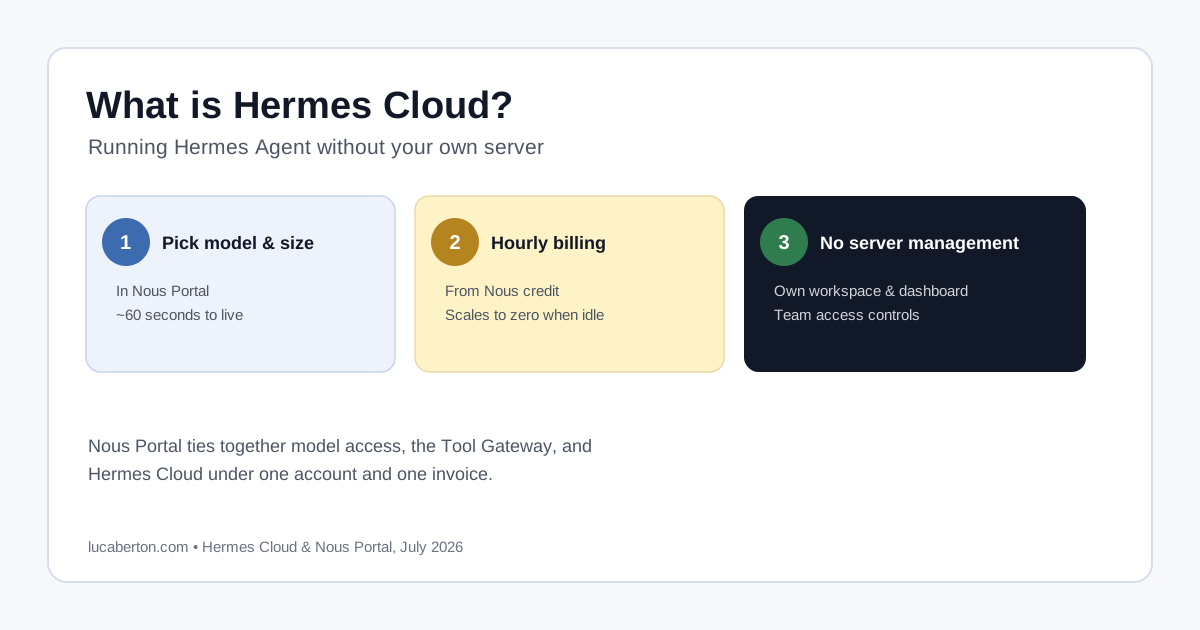
LLM provider — the highlighted default is Nous Portal: one subscription covering 300+ models plus its Tool Gateway (web search, image generation, TTS, browser automation). Press Enter and it prints a login URL with a short user code, e.g.:
Open: https://portal.nousresearch.com/manage-subscription?user_code=XXXX-XXXX
If prompted, enter code: XXXX-XXXX
Waiting for approval (polling every 1s)...
Open that link in a browser, approve it, and the CLI picks up the login automatically. OpenAI, Anthropic, OpenRouter, and custom/self-hosted endpoints are also available if you’d rather bring your own API key; credentials are stored in the OS keyring either way.
Default model — a short list of curated free models from the Nous Portal catalog, plus Enter custom model name for anything else.
tencent/hy3:freeis a reasonable default for general agent work; whatever you pick, switch anytime later withhermes model, no reinstall needed.Tool pool — a checklist (web search & extract, image generation, text-to-speech, speech-to-text, browser automation), all enabled by default. Untick anything you don’t want the agent to have access to.
Terminal backend — where Hermes actually runs shell commands and code: Local, Docker, Modal, SSH, Daytona, or Singularity/Apptainer. Local is the default and the right choice for a single dedicated VPS like this one; reach for Docker or one of the cloud sandboxes only if you need stronger isolation or run Hermes on a shared machine.
Messaging platforms — pairing a Telegram bot, Discord bot, Slack app, WhatsApp, or Signal number so you can talk to the agent from your phone instead of only from the terminal.
If you only want to try it from the CLI without going through the interactive prompts, skip straight to Nous Portal:
hermes setup --portalOnce setup finishes, reload your shell and confirm everything’s healthy:
source ~/.bashrc
hermes --version
hermes doctor
Then start a session directly:
hermesFixing a failed Playwright/Chromium install on a 1 GB instance
The installer itself may print one non-fatal warning near the end, right after Node.js dependencies go in:
→ Installing browser engine (Playwright Chromium)...
⚠ Playwright browser installation failed — browser tools will not work.
⚠ Try running manually: cd ~/.hermes/hermes-agent && npx playwright install --with-deps chromium
The optional Playwright Chromium browser (used for web automation) can fail to install on the free-tier VM.Standard.E2.1.Micro shape, since 1 GB of RAM isn’t enough headroom and there’s no swap configured by default. Everything else — the core agent, CLI, dependencies, config, and skills — installs and runs fine without it, and hermes doctor will flag the same gap later if you missed the warning.
Add 2 GB of swap first:
sudo fallocate -l 2G /swapfile
sudo chmod 600 /swapfile
sudo mkswap /swapfile
sudo swapon /swapfile
echo '/swapfile none swap sw 0 0' | sudo tee -a /etc/fstab
free -h
Then retry the browser install:
cd ~/.hermes/hermes-agent
npx playwright install --with-deps chromium
Browser automation is only needed for tools that drive a real browser (scraping JS-heavy pages, visual checks); skip this entirely if you don’t need it.
Step 7: Keep It Running After You Disconnect
A plain hermes or hermes gateway start in your SSH session dies the moment the connection drops. Set up the messaging gateway to run as a systemd service instead:
sudo tee /etc/systemd/system/hermes-gateway.service > /dev/null << 'EOF'
[Unit]
Description=Hermes Agent Gateway
After=network-online.target

[Service]
Type=simple
User=ubuntu
WorkingDirectory=/home/ubuntu
ExecStart=/home/ubuntu/.local/bin/hermes gateway start
Restart=always
RestartSec=5s

[Install]
WantedBy=multi-user.target
EOF

sudo systemctl daemon-reload
sudo systemctl enable --now hermes-gateway
Check it came up cleanly:
systemctl status hermes-gateway
journalctl -u hermes-gateway -f
With this in place, messages sent to your paired Telegram/Discord/Slack account reach the agent even though your laptop is closed — it’s running on the Oracle Cloud instance, not on your machine.
Securing the Instance
Hermes doesn’t need any inbound ports for the standard messaging-gateway setup — Telegram, Discord, and Slack all connect outbound over HTTPS (443). Lock the instance down accordingly:
# Firewall: only SSH needed inbound
sudo ufw default deny incoming
sudo ufw allow 22/tcp
sudo ufw enable

# Disable SSH password auth (key-only)
sudo sed -i 's/#PasswordAuthentication yes/PasswordAuthentication no/' /etc/ssh/sshd_config
sudo systemctl restart sshd

# Unattended security updates
sudo apt install -y unattended-upgrades
sudo dpkg-reconfigure -plow unattended-upgrades

# Fail2ban against brute-forced SSH
sudo apt install -y fail2ban
sudo systemctl enable fail2ban
Remember to also open port 22 (and only 22) in the instance’s Oracle Cloud Security List or Network Security Group — the OS firewall alone isn’t enough on OCI; traffic is filtered at the VCN level first.
Monitoring and Maintenance
hermes doctor              # diagnose config/dependency issues
hermes insights            # token usage across providers
hermes update              # update the CLI and its dependencies
tar czf hermes-backup-$(date +%F).tar.gz ~/.hermes   # back up memory, skills, config
~/.hermes/ holds everything that makes the agent “yours” — its memory database, learned skills, and config — so back it up before any risky change, and make sure it lives on the instance’s persistent boot volume rather than any ephemeral storage.
Related Articles
- Connecting Hermes Agent to GitHub: Auth Setup and Gotchas
- What is Hermes Cloud? Running Hermes Agent Without a Server
- What is Hermes Agent? Nous Research’s Self-Improving AI Agent
- Connecting Hermes Agent to Discord: Complete Setup Guide
- Hermes Agent Discord Bot Not Showing Up or Not Responding
- Fix: Hermes Agent Discord “invalid literal for int()” Error
- Hermes Agent on a 1GB VPS: Fixing the Common Gotchas
- Hermes Agent vs OpenClaw
- OpenClaw on a $5 VPS: Always-On AI Agent with Zero Hardware
- What is OpenClaw? The Open-Source AI Agent Gateway