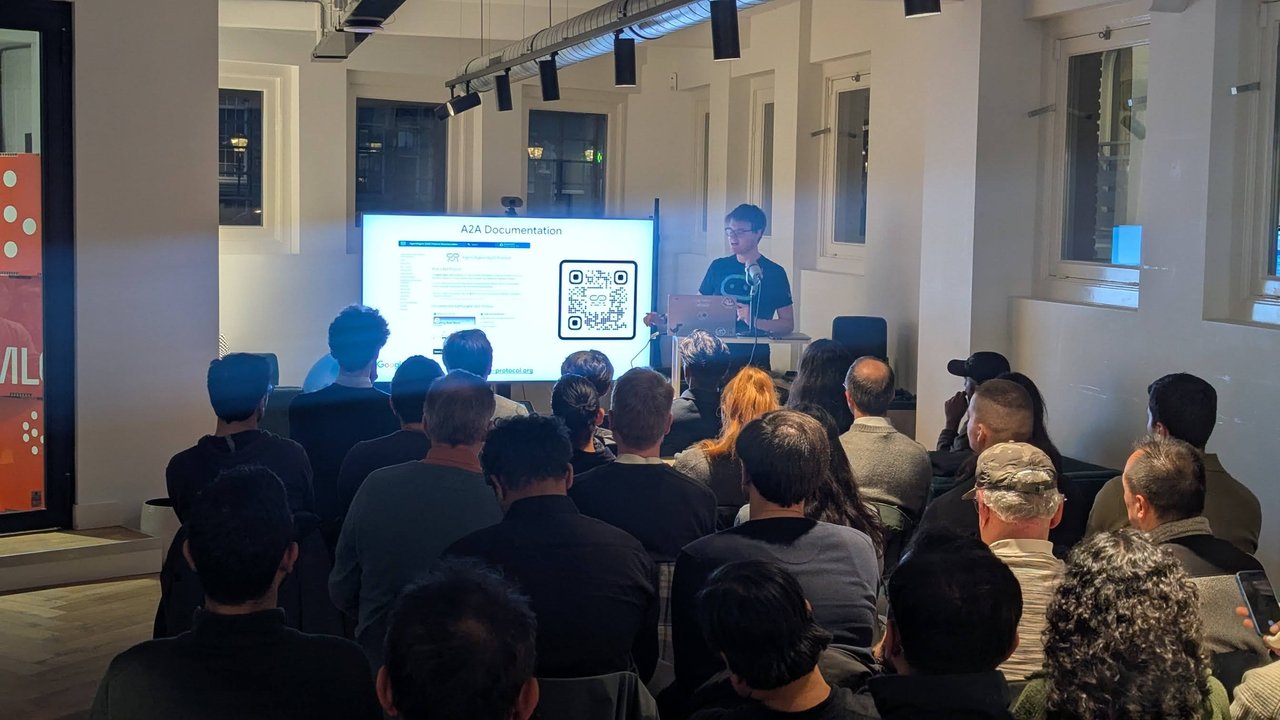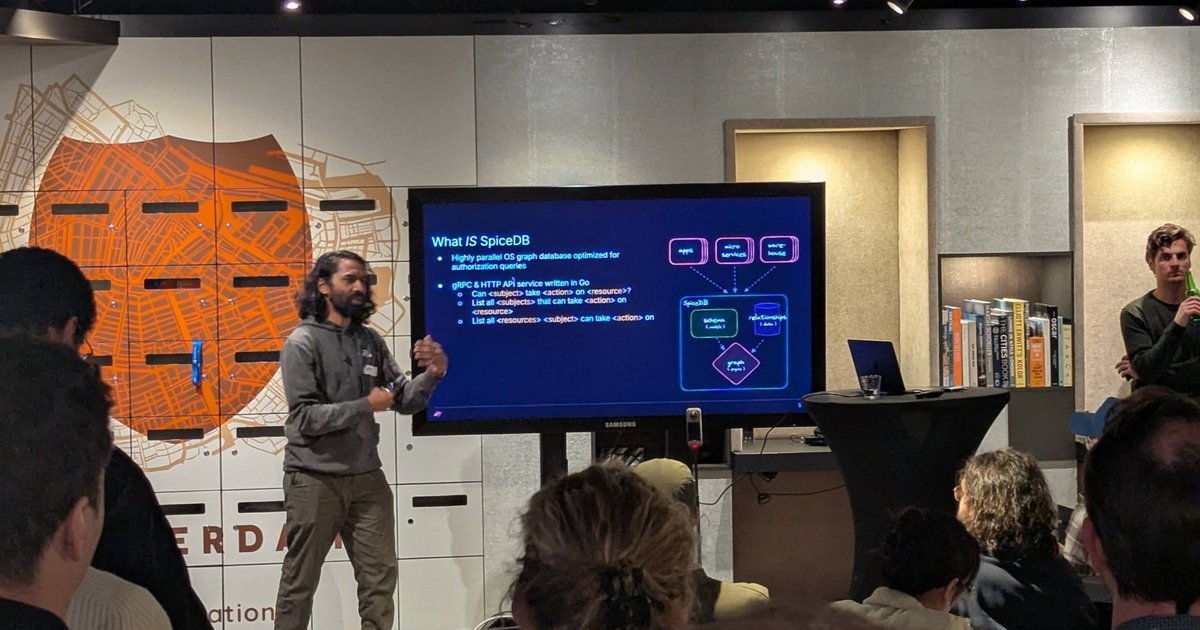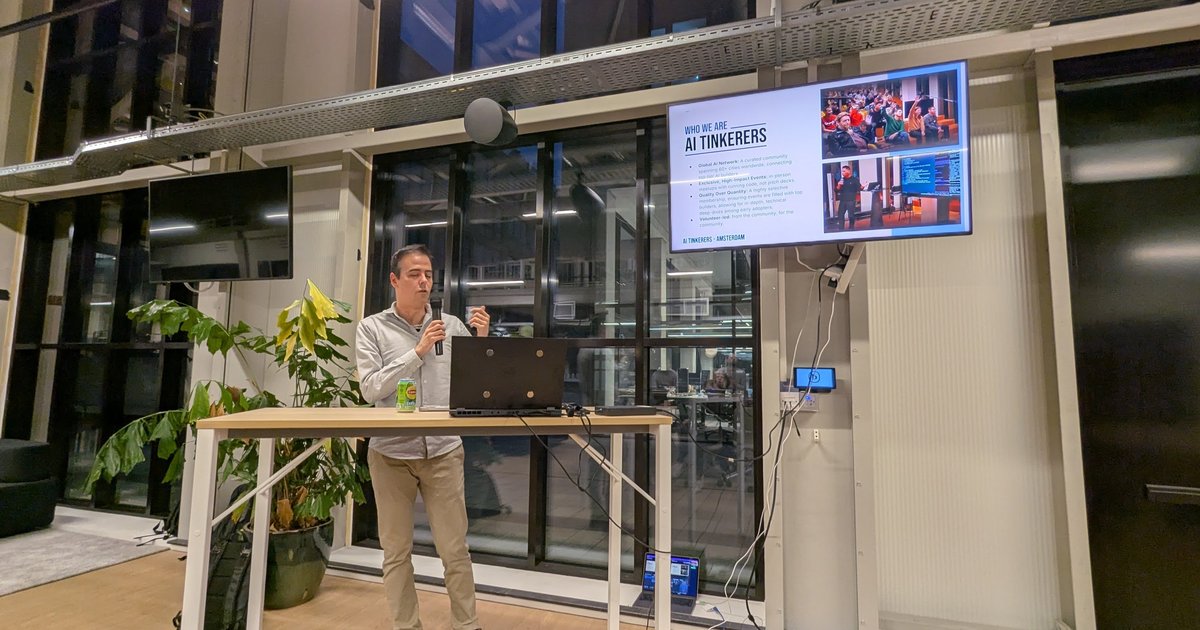
I gave a talk at KubeCon Europe 2026 on multi-tenant GPU orchestration on bare metal. GPU workloads on Kubernetes are the fastest-growing segment. Here is how to get started.
Architecture Overview
Kubernetes Cluster
├── Control Plane (no GPU)
├── CPU Worker Nodes (general workloads)
└── GPU Worker Nodes
    ├── NVIDIA Driver
    ├── NVIDIA Container Toolkit
    ├── NVIDIA Device Plugin (DaemonSet)
    └── GPU Operator (manages everything)
Step 1: Install NVIDIA GPU Operator
The GPU Operator automates driver installation, container toolkit setup, and device plugin deployment:
# Add NVIDIA Helm repo
helm repo add nvidia https://helm.ngc.nvidia.com/nvidia
helm repo update

# Install GPU Operator
helm install --wait gpu-operator nvidia/gpu-operator \
  --namespace gpu-operator \
  --create-namespace \
  --set driver.enabled=true \
  --set toolkit.enabled=true
Verify:
kubectl get pods -n gpu-operator
# All pods should be Running

kubectl get nodes -o custom-columns="NAME:.metadata.name,GPU:.status.allocatable.nvidia\.com/gpu"
# Should show GPU count per node
Step 2: Run Your First GPU Pod
apiVersion: v1
kind: Pod
metadata:
  name: gpu-test
spec:
  restartPolicy: OnFailure
  containers:
    - name: cuda-test
      image: nvidia/cuda:12.8.0-base-ubuntu24.04
      command: ["nvidia-smi"]
      resources:
        limits:
          nvidia.com/gpu: 1
kubectl apply -f gpu-test.yaml
kubectl logs gpu-test
# Should show nvidia-smi output with your GPUStep 3: Deploy AI Inference
apiVersion: apps/v1
kind: Deployment
metadata:
  name: llm-inference
spec:
  replicas: 1
  selector:
    matchLabels:
      app: llm-inference
  template:
    metadata:
      labels:
        app: llm-inference
    spec:
      containers:
        - name: vllm
          image: vllm/vllm-openai:latest
          args:
            - "--model"
            - "meta-llama/Llama-3-8B"
            - "--max-model-len"
            - "4096"
          ports:
            - containerPort: 8000
          resources:
            limits:
              nvidia.com/gpu: 1
              memory: 32Gi
            requests:
              cpu: "4"
              memory: 16Gi
---
apiVersion: v1
kind: Service
metadata:
  name: llm-inference
spec:
  selector:
    app: llm-inference
  ports:
    - port: 8000
GPU Sharing: Multi-Tenant
By default, one GPU = one pod. For sharing GPUs across teams:
Time-Slicing (MPS)
# ConfigMap for GPU time-slicing
apiVersion: v1
kind: ConfigMap
metadata:
  name: time-slicing-config
  namespace: gpu-operator
data:
  any: |-
    version: v1
    sharing:
      timeSlicing:
        resources:
          - name: nvidia.com/gpu
            replicas: 4  # 4 pods share 1 physical GPU
MIG (Multi-Instance GPU) — A100/H100
# Enable MIG on H100
nvidia-smi mig -cgi 19,19,19,19,19,19,19 -C
# Creates 7 MIG instances from one H100
Monitoring GPU Utilization
Deploy DCGM Exporter for Prometheus metrics:
helm install dcgm-exporter nvidia/dcgm-exporter \
  --namespace gpu-operator \
  --set serviceMonitor.enabled=true
Key metrics:
DCGM_FI_DEV_GPU_UTIL— GPU utilization percentageDCGM_FI_DEV_MEM_COPY_UTIL— Memory utilizationDCGM_FI_DEV_GPU_TEMP— TemperatureDCGM_FI_PROF_GR_ENGINE_ACTIVE— Compute activity
Best Practices
- Use node affinity to schedule GPU pods only on GPU nodes
- Set resource requests AND limits for GPU memory
- Enable time-slicing for development clusters
- Use MIG for production multi-tenant workloads
- Monitor utilization — idle GPUs are expensive GPUs