Why Discord + OpenClaw?
Discord is one of the most popular channels for OpenClaw. With a Discord bot, your AI agent can respond to messages in channels and DMs, making it accessible to your team, community, or personal server 24/7.
This guide covers the complete flow: creating the bot in Discord, configuring it in OpenClaw, and fixing the most common integration errors.
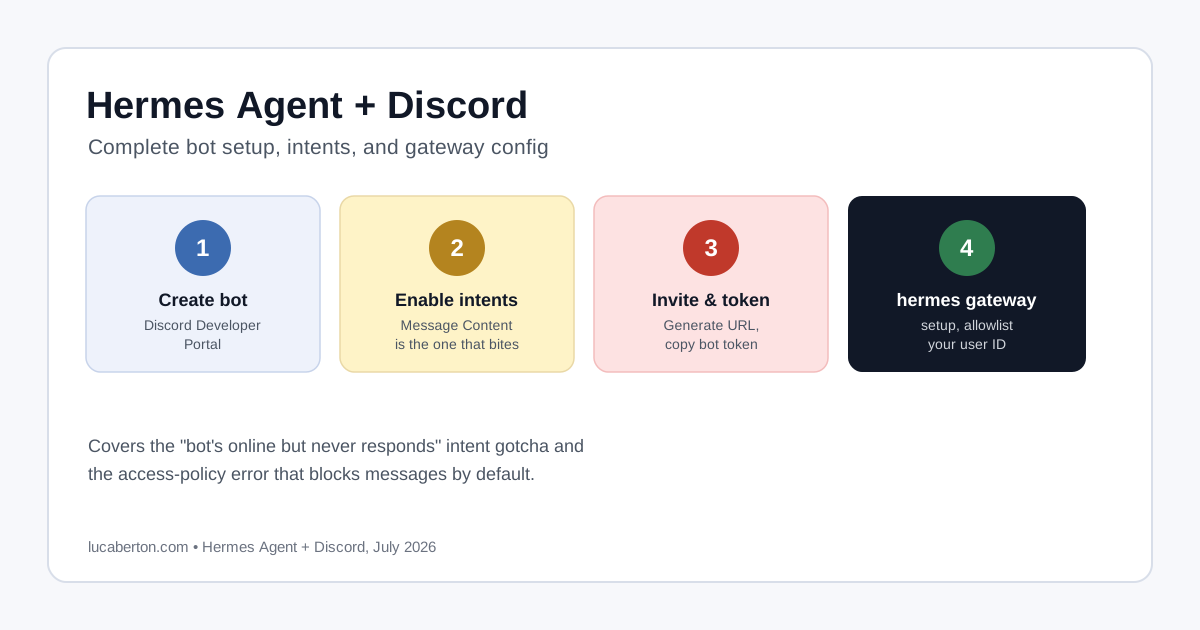
Step 1: Create a Discord Application
- Go to the Discord Developer Portal
- Click New Application
- Give it a name (e.g., “OpenClaw Bot”) and click Create
Step 2: Create the Bot and Get the Token
- In the left sidebar, click Bot
- Click Add Bot (if not already created)
- Under Token, click Reset Token (or View Token)
- Copy the token — you’ll need this for OpenClaw
Important: The bot token is shown only once after reset. Store it securely.
Step 3: Enable Privileged Gateway Intents
This is the step most people miss, and it causes the dreaded Fatal Gateway error: 4014.
In the Discord Developer Portal:
- Navigate to your app → Bot
- Scroll to Privileged Gateway Intents
- Enable these intents:
- ✅ Message Content Intent — Required for the bot to read message text
- ✅ Server Members Intent — Recommended for member-aware features
- ✅ Presence Intent — Optional, enables presence-based features
- Click Save Changes
What happens without Message Content Intent
If you don’t enable it, OpenClaw will warn you:
[discord] Discord Message Content Intent is disabled;
bot may not respond to channel messages.
Enable it in Discord Dev Portal (Bot → Privileged Gateway Intents)
or require mentions.
And worse — the gateway may crash with:
[openclaw] Uncaught exception: Error: Fatal Gateway error: 4014Error code 4014 specifically means “Disallowed intent(s)” — Discord is rejecting the connection because the bot requested intents it hasn’t been approved for.
Step 4: Generate the Bot Invite Link
- In the Developer Portal, go to OAuth2 → URL Generator
- Under Scopes, check:
- ✅
bot - ✅
applications.commands(optional, for slash commands)
- ✅
- Under Bot Permissions, select at minimum:
- ✅ Read Messages / View Channels
- ✅ Send Messages
- ✅ Read Message History
- ✅ Embed Links (optional, for rich responses)
- Copy the generated URL
Invite the bot
Open the URL in your browser. You’ll see an authorization page:
- Select the Discord server where you want the bot
- Review permissions
- Click Authorize
- Complete the CAPTCHA
Your bot should now appear in the server’s member list (it’ll show as offline until OpenClaw connects).
Step 5: Configure the Token in OpenClaw
SSH into your Azure VM and set the bot token:
cd ~/openclaw

# Set the Discord bot token (new config namespace)
docker compose run --rm openclaw-cli config set \
  channels.discord.botToken "<YOUR_BOT_TOKEN>"
Note: In newer OpenClaw versions, Discord config moved from
discord.*tochannels.discord.*. If you use the old path, you’ll see:Error: Config validation failed: discord: discord config moved to channels.discord (auto-migrated on load).
Enable the Discord channel
docker compose run --rm openclaw-cli config set \
  channels.discord.enabled true
Restart the gateway
docker compose down
docker compose up -d
docker compose logs -f --tail=100 openclaw-gateway
Step 6: Verify the Connection
In the gateway logs, you should see:
[discord] [default] starting provider (@openclaw)Without any Fatal Gateway error: 4014 following it.
Test in Discord
- Go to your Discord server
- Send a message in a channel the bot can see
- The bot should respond through the AI model
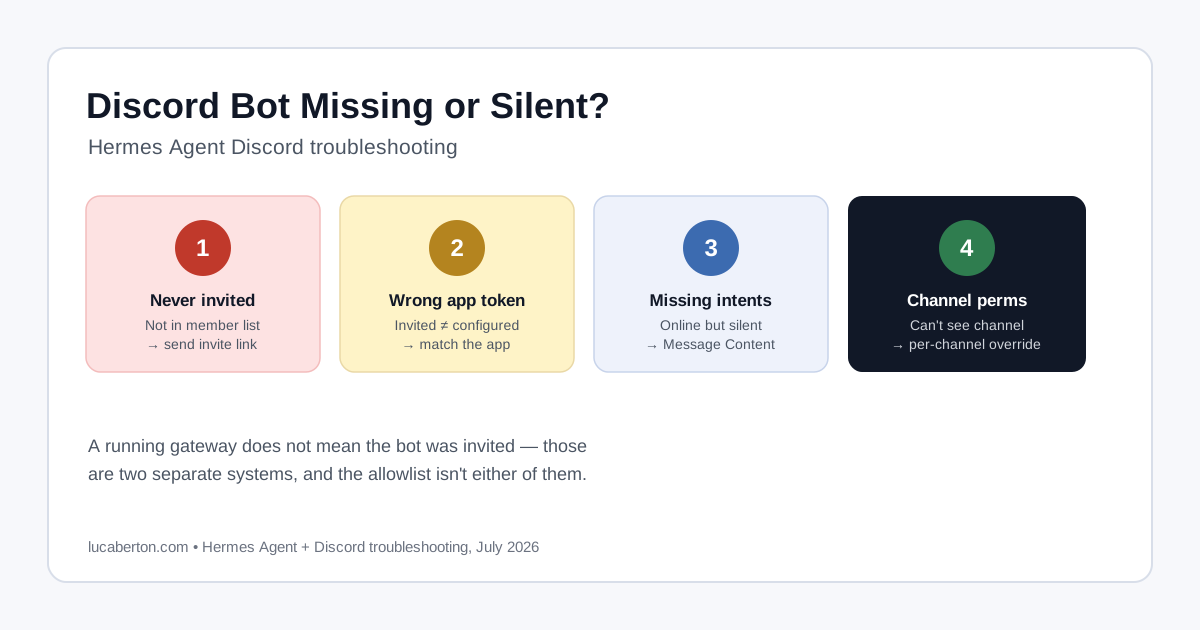
Check channel permissions
If the bot doesn’t respond:
- In Discord, right-click the channel → Edit Channel → Permissions
- Ensure the bot role has:
- ✅ View Channel
- ✅ Send Messages
- ✅ Read Message History
Common Discord Issues
Fatal Gateway error: 4014
Cause: Bot requested intents not enabled in Discord Developer Portal.
Fix:
- Discord Developer Portal → Bot → Privileged Gateway Intents
- Enable Message Content Intent
- Save Changes
- Restart OpenClaw:
docker compose down && docker compose up -d
Bot is online but doesn’t respond
Causes:
- Message Content Intent not enabled (bot can’t read messages)
- Bot doesn’t have channel permissions
- Bot is only responding to mentions (check config)
Fix:
# Check Discord config
docker compose run --rm openclaw-cli config get | grep -i discord
Config validation error about discord namespace
Cause: Using old discord.* config path.
Fix: Use channels.discord.* instead:
docker compose run --rm openclaw-cli config set channels.discord.botToken "<TOKEN>"
docker compose run --rm openclaw-cli config set channels.discord.enabled true
Gateway crash loop after enabling Discord
If the gateway keeps restarting after enabling Discord, temporarily disable it to stabilize:
docker compose run --rm openclaw-cli config set channels.discord.enabled false
docker compose down
docker compose up -d
Then fix the Discord config and re-enable.
Security Notes
- Never commit your bot token to version control
- Regenerate the token if you suspect it’s been exposed
- Restrict bot permissions to only what’s needed
- Use a dedicated server for testing before adding the bot to production servers
Next Steps
With Discord connected, let’s explore the Control UI dashboard: Accessing OpenClaw Control UI Dashboard.