Discord is one of the messaging channels Hermes Agent can connect to, alongside Telegram, Slack, WhatsApp, and Signal. Once it’s wired up, the agent running on your server — see deploying it on Oracle Cloud’s free tier — becomes reachable from any Discord server or DM, not just an SSH session.
This covers the full path: creating the bot in Discord’s Developer Portal, the one setting that silently breaks everything if you skip it, and the config on the Hermes side.
Step 1: Create a Discord Application
- Go to the Discord Developer Portal and sign in.
- Click New Application, give it a name (e.g. “Hermes Agent”), accept the Developer Terms of Service, and click Create.
- Note the Application ID shown on the general information page — you may need it later for the invite URL.
Step 2: Create the Bot
- In the left sidebar, select Bot. Discord creates the bot user automatically.
- Under Authorization Flow, set Public Bot to ON (required for Discord’s own install-link flow) and leave Require OAuth2 Code Grant off.
Step 3: Enable Privileged Gateway Intents (Don’t Skip This)
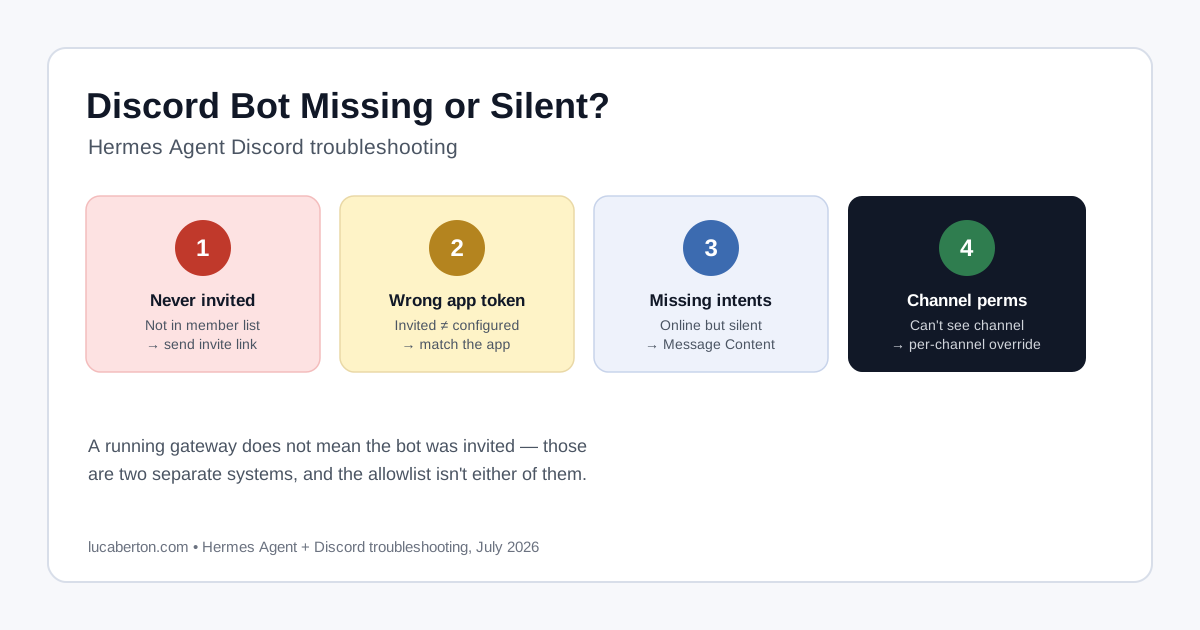
This is the step that causes almost every “bot’s online but won’t respond” report. On the Bot page, scroll to Privileged Gateway Intents and enable:
- Message Content Intent — required to read message text at all
- Server Members Intent — required to resolve usernames
- Presence Intent — optional, only needed for online/offline status features
Without Message Content Intent, the bot receives message events but the text field arrives empty — it genuinely cannot see what you typed, even though it looks fully connected. Click Save Changes once all three are toggled.
Step 4: Retrieve the Bot Token
Under the Token section, click Reset Token, complete 2FA if enabled, and copy the token immediately — Discord shows it exactly once. Anyone with this token has full control of the bot, so treat it like a password: never commit it to a repo or paste it into a public chat.
Step 5: Generate the Invite URL
Recommended: In the left sidebar, select Installation, enable Guild Install, and choose Discord Provided Link as the install link. Under Default Install Settings, select scopes bot and applications.commands.
For permissions, the minimum to get messages flowing is View Channels, Send Messages, Embed Links, Attach Files, and Read Message History. In practice, Hermes replies by creating a thread per conversation rather than posting flat messages, so the following fuller set is what actually works end-to-end without surprises:
- View Channels
- Send Messages
- Send Messages in Threads
- Create Public Threads
- Create Private Threads
- Manage Threads
- Embed Links
- Attach Files
- Read Message History
- Add Reactions
Manual alternative — construct the invite URL directly, adjusting the permissions value if you use Discord’s own permission calculator for a different set:
https://discord.com/oauth2/authorize?client_id=YOUR_APP_ID&scope=bot+applications.commands&permissions=274878286912The integer above is a reasonable starting point but doesn’t include thread management — if your bot’s replies aren’t appearing, check whether it’s missing thread-related permissions before assuming something else is broken.
Step 6: Invite the Bot to Your Server
Open the invite URL, pick your server from the Add to Server dropdown, click Continue, then Authorize, and complete any CAPTCHA. The bot will show up in your server’s member list as offline until the Hermes gateway actually connects.
Step 7: Find Your Discord User ID
Hermes needs to know who is allowed to talk to it — Discord bots don’t get this for free. In Discord: Settings → Advanced → Developer Mode (toggle on), then right-click your own username anywhere and select Copy User ID. You’ll get a long number like 284102345871466496.
Step 8: Configure Hermes Agent
Option A — interactive (recommended):
hermes gateway setupSelect Discord when prompted, then paste the bot token and your Discord user ID when asked.
Option B — manual, editing ~/.hermes/.env directly:
DISCORD_BOT_TOKEN=your-bot-token
DISCORD_ALLOWED_USERS=284102345871466496
Then start (or restart) the gateway:
hermes gateway start
# or, if it's already running and you changed config:
hermes gateway restart
Environment Variables Reference
| Variable | Required | Purpose |
|---|---|---|
DISCORD_BOT_TOKEN | Yes | Bot credential from the Developer Portal |
DISCORD_ALLOWED_USERS | Conditional | Comma-separated Discord user IDs allowed to interact |
DISCORD_ALLOWED_ROLES | No | Role-based access, OR’d with the user allowlist |
DISCORD_ALLOW_ALL_USERS | No | Set true to skip the allowlist entirely (open access) |
DISCORD_REQUIRE_MENTION | No | Require an @mention in server channels (default: true) |
DISCORD_ALLOWED_CHANNELS | No | Comma-separated channel IDs — if set, the bot only responds in these |
DISCORD_FREE_RESPONSE_CHANNELS | No | Comma-separated channel IDs where a mention isn’t required |
DISCORD_HOME_CHANNEL | No | Channel ID the agent uses for proactive/scheduled messages |
Optional: Fine-Grained Behavior in config.yaml
For settings beyond the env-var basics, add a discord: block to ~/.hermes/config.yaml:
group_sessions_per_user: true   # isolate per-user sessions in shared channels
discord:
  require_mention: true
  auto_thread: true
  reactions: true
  history_backfill: true
  allow_mentions:
    everyone: false
    roles: false
    users: true
    replied_user: true
Managing Channel Access
Adding Hermes to a Private Channel
Being in the server isn’t enough — private channels override server-wide role permissions, so the bot needs explicit access to each one:
- Right-click the private channel → Edit Channel → Permissions.
- Click Add members or roles and add the Hermes bot (or its role).
- Explicitly allow View Channel, Send Messages, Read Message History, Send Messages in Threads, Embed Links, Attach Files, Add Reactions, Create Public Threads, Create Private Threads, and Manage Threads.
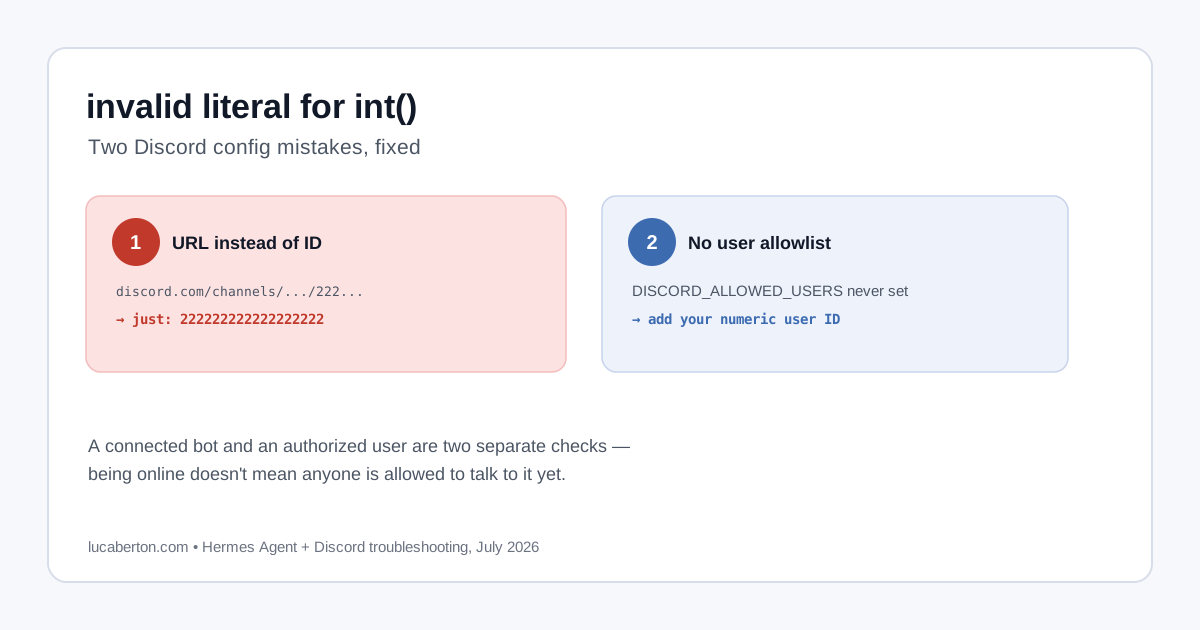
Then copy the channel’s numeric ID (Developer Mode on → right-click the channel → Copy Channel ID — not the full URL, per the invalid-literal-for-int() gotcha) and add it to the existing comma-separated list:
nano ~/.hermes/.envDISCORD_ALLOWED_CHANNELS=222222222222222222,NEW_PRIVATE_CHANNEL_IDAdd the same ID to DISCORD_FREE_RESPONSE_CHANNELS too if you want Hermes to reply there without requiring an @mention. Restart afterward: hermes gateway restart.
Giving Hermes Access to Every Channel
To let Hermes work anywhere it can see rather than a fixed list, two things need to change — the Discord-side permissions, and the Hermes-side restriction.
On Discord: Server Settings → Roles → (Hermes’s role) → Permissions, enable the same permission set as above at the role level (not per-channel), and explicitly do not enable Administrator — it’s a far larger blast radius than anything the bot actually needs. Private channels or categories still need the role added explicitly, since role-level permissions don’t automatically apply there.
On the VPS, back up first, then remove the channel restriction entirely:
cp ~/.hermes/.env ~/.hermes/.env.backup.$(date +%Y%m%d-%H%M%S)
sed -i '/^DISCORD_ALLOWED_CHANNELS=/d' ~/.hermes/.env
With no DISCORD_ALLOWED_CHANNELS set, Hermes responds in any channel it has Discord permissions for — the allowlist restriction only applies when that variable exists at all. Check config.yaml too, in case the same restriction was set there:
grep -nE 'allowed_channels|ignored_channels' ~/.hermes/.env ~/.hermes/config.yamlChoosing How It Responds Once It’s Everywhere
With the channel restriction gone, decide whether Hermes needs an @mention to respond. Both directions use the same safe idempotent pattern — update the line if it exists, append it if it doesn’t:
# Require @mention everywhere (recommended — avoids the agent replying to every message it can see)
grep -q '^DISCORD_REQUIRE_MENTION=' ~/.hermes/.env \
  && sed -i 's/^DISCORD_REQUIRE_MENTION=.*/DISCORD_REQUIRE_MENTION=true/' ~/.hermes/.env \
  || echo 'DISCORD_REQUIRE_MENTION=true' >> ~/.hermes/.env
# Respond to every message, no mention needed — noisy, and can burn through model usage fast in busy channels
grep -q '^DISCORD_REQUIRE_MENTION=' ~/.hermes/.env \
&& sed -i 's/^DISCORD_REQUIRE_MENTION=.*/DISCORD_REQUIRE_MENTION=false/' ~/.hermes/.env \
|| echo 'DISCORD_REQUIRE_MENTION=false' >> ~/.hermes/.envRestart and confirm in the logs before testing:
hermes gateway restart
journalctl --user -u hermes-gateway --since "2 minutes ago" --no-pager \
  | grep -Ei 'discord|connected|ready|error|forbidden'
Troubleshooting
Bot is online but never responds. This is almost always the Message Content Intent being disabled — go back to Developer Portal → Bot → Privileged Gateway Intents and confirm all three are toggled on, then restart the gateway.
“No env user allowlists configured.” The exact warning is: “No env user allowlists configured. Messaging platforms default to pairing/allowlist policies and will deny unknown senders unless you configure platform allowlists (e.g., TELEGRAM_ALLOWED_USERS=your_id) or explicitly opt in with GATEWAY_ALLOW_ALL_USERS=true plus dm_policy/group_policy: open on the platform.” For Discord specifically, configure at least one of DISCORD_ALLOWED_USERS, DISCORD_ALLOWED_ROLES, or DISCORD_ALLOW_ALL_USERS=true.
Disallowed intents error on connect. Same root cause as the “not responding” case — one or more Privileged Gateway Intents aren’t enabled in the Developer Portal. Enable all three and restart.
“User not allowed.” Your Discord user ID isn’t in DISCORD_ALLOWED_USERS. Double-check you copied the numeric ID (not the username) and restart with hermes gateway restart.
Security Notes
- Never commit the bot token to version control — treat it as a secret on par with an API key.
- Regenerate the token immediately if you suspect it leaked (Developer Portal → Bot → Reset Token).
- Prefer
DISCORD_ALLOWED_USERS/DISCORD_ALLOWED_ROLESoverDISCORD_ALLOW_ALL_USERS=true, especially on a public server — the latter lets anyone who can see the bot talk to your agent. - Don’t grant the bot Administrator. The permission list in Step 5 (view/send/embed/attach/history plus thread creation and management) is everything Hermes actually needs — Administrator is a much larger blast radius for no functional benefit.
- If you hit a recurring gotcha getting the gateway itself running in the first place (PATH issues, subcommand order, low-RAM instances), see Hermes Agent on a 1GB VPS: Fixing the Common Gotchas.
- For deeper auth, model 404, rate-limit, and gateway error troubleshooting, see Hermes Agent Troubleshooting Guide.
Related Articles
- Connecting Hermes Agent to GitHub: Auth Setup and Gotchas
- What is Hermes Cloud? Running Hermes Agent Without a Server
- Hermes Agent Discord Bot Not Showing Up or Not Responding
- Fix: Hermes Agent Discord “invalid literal for int()” Error
- What is Hermes Agent? Nous Research’s Self-Improving AI Agent
- How to Deploy Hermes Agent on Oracle Cloud’s Free Tier
- Hermes Agent on a 1GB VPS: Fixing the Common Gotchas
- Hermes Agent vs OpenClaw
- Connecting OpenClaw to Discord on Azure