Understanding Gateway Bind Modes
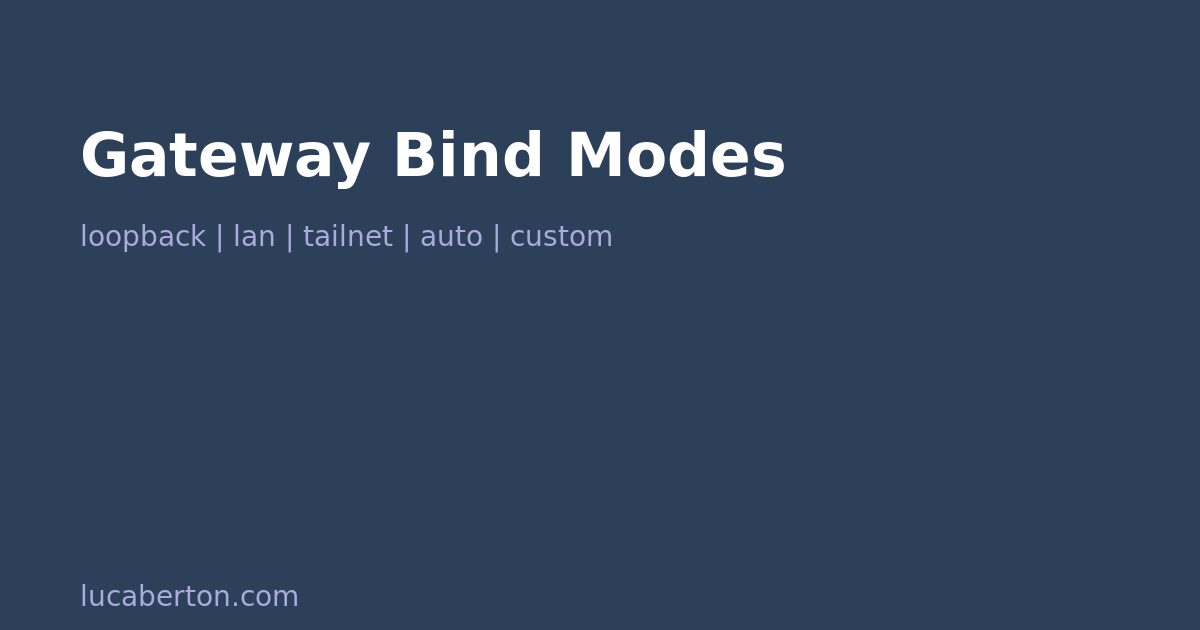
One of the first configuration hurdles with OpenClaw on Azure is understanding the --bind parameter. Unlike a simple IP address (e.g., 0.0.0.0), OpenClaw uses named bind modes:
| Mode | Behavior | Use Case |
|---|---|---|
loopback | Binds to 127.0.0.1 only | SSH tunnel access (most secure) |
lan | Binds to all network interfaces | Direct LAN/public access |
tailnet | Binds to Tailscale interface | Zero-config VPN access |
auto | OpenClaw decides based on environment | Automatic detection |
custom | Custom bind address (requires additional config) | Advanced setups |
Setting the bind mode
In your .env file on the VM:
# For SSH tunnel access (recommended)
OPENCLAW_GATEWAY_BIND=loopback

# For direct public/LAN access
OPENCLAW_GATEWAY_BIND=lan
Common mistake: Setting
OPENCLAW_GATEWAY_BIND=0.0.0.0will fail with:Invalid --bind (use "loopback", "lan", "tailnet", "auto", or "custom")Use
laninstead of0.0.0.0.
The Control UI Origin Enforcement
When you bind to a non-loopback address (e.g., lan), OpenClaw enforces browser-origin checks on the Control UI. This prevents unauthorized browsers from connecting to your dashboard via DNS rebinding or cross-origin attacks.
Without proper origin configuration, you’ll see this crash loop:
Gateway failed to start: Error: non-loopback Control UI requires
gateway.controlUi.allowedOrigins (set explicit origins), or set
gateway.controlUi.dangerouslyAllowHostHeaderOriginFallback=true
to use Host-header origin fallback mode
You have two options to fix this:
Option A: Explicit Allowed Origins (Recommended)
Set a specific list of trusted origins:
cd ~/openclaw

docker compose run --rm openclaw-cli config set \
  gateway.controlUi.allowedOrigins \
  '["http://<VM_PUBLIC_IP>:18789","http://<VM_PRIVATE_IP>:18789","http://localhost:18789","http://127.0.0.1:18789"]'
Replace <VM_PUBLIC_IP> and <VM_PRIVATE_IP> with your actual IPs:
# Get your public IP
curl -s ifconfig.me; echo

# Get your private IP
hostname -I
Why this is recommended
- Explicitly defines which browser origins can connect
- Protects against DNS rebinding attacks
- No security warnings in the gateway logs
- Works with Azure NSG restrictions for defense in depth
Option B: Host-Header Origin Fallback (Quick but less secure)
If you want to get running immediately:
docker compose run --rm openclaw-cli config set \
  gateway.controlUi.dangerouslyAllowHostHeaderOriginFallback true
This tells OpenClaw to trust the Host header from the browser request instead of checking against an explicit allowlist.
When this is acceptable
- You restrict access via Azure NSG to your IP only
- You’re behind a reverse proxy that sets proper headers
- You’re in a development/testing environment
- You understand the DNS rebinding risk
The security warning
With this flag enabled, you’ll see:
[gateway] security warning: dangerous config flags enabled:
gateway.controlUi.dangerouslyAllowHostHeaderOriginFallback=true.
Run openclaw security audit.
This is expected and serves as a reminder to lock down access through other means.
Applying Configuration Changes
After any config change, restart the gateway:
docker compose down
docker compose up -d --force-recreate
docker compose ps
docker compose logs --tail=50 openclaw-gateway
Verify the gateway stays Up (not Restarting):
# Check multiple times over ~60 seconds
docker compose ps
# Wait 15 seconds
docker compose ps
# Wait 15 seconds
docker compose ps
Recommended Configuration for Azure
For SSH tunnel access (most secure)
# .env
OPENCLAW_GATEWAY_BIND=loopback
OPENCLAW_GATEWAY_PORT=18789
No origin configuration needed — loopback mode skips the origin check.
Access via SSH tunnel:
# From your laptop
ssh -L 18789:127.0.0.1:18789 azureuser@<VM_PUBLIC_IP>
# Then open http://127.0.0.1:18789
For direct public access
# .env
OPENCLAW_GATEWAY_BIND=lan
OPENCLAW_GATEWAY_PORT=18789
Plus explicit origins:
docker compose run --rm openclaw-cli config set \
  gateway.controlUi.allowedOrigins \
  '["http://<VM_PUBLIC_IP>:18789"]'
Plus Azure NSG rule restricting TCP 18789 to your IP.
Configuration Reference
View your current configuration:
docker compose run --rm openclaw-cli config getKey gateway settings:
| Config Key | Default | Description |
|---|---|---|
gateway.controlUi.enabled | true | Enable/disable the Control UI |
gateway.controlUi.basePath | / | URL prefix for the UI (e.g., /openclaw) |
gateway.controlUi.allowedOrigins | [] | Browser-origin allowlist |
gateway.controlUi.dangerouslyAllowHostHeaderOriginFallback | false | Host-header fallback mode |
gateway.controlUi.allowInsecureAuth | false | Allow token-only auth over HTTP |
gateway.controlUi.dangerouslyDisableDeviceAuth | false | Disable device identity checks |
Next Steps
With the gateway properly configured, let’s connect a Discord bot: Connecting OpenClaw to Discord on Azure.
Related Articles
- Fix: OpenClaw Model API Key Errors
- Setting Up OpenClaw Hybrid Memory Search
- Docker Volume Permissions for OpenClaw on Linux
- OpenClaw Origin Not Allowed Fix
- Running OpenClaw on Kubernetes
- Architecture to Scale AI in the Enterprise
- GPU Sharing on Kubernetes Guide
- Packed Room at KubeCon Europe 2026: Multi-Tenant GPUs on Bare Metal
Frequently Asked Questions
What does “Origin not allowed” mean in OpenClaw?
This error occurs when you access the OpenClaw Control UI from a hostname or IP not listed in gateway.controlui.allowedOrigins. Fix it by running: openclaw config set gateway.controlui.allowedOrigins your-hostname:port
How do I change OpenClaw gateway bind mode?
Run openclaw config set gateway.bind followed by the mode: loopback (default, localhost only), lan (local network), tailnet (Tailscale), auto (auto-detect), or a custom IP:port.
Do I need to restart after changing bind settings?
Yes. Run openclaw gateway restart after any configuration change to gateway.bind or gateway.controlui settings.